The Invisible Reading Order: Verifying Searchable Text Before a UK Scan Leaves the Office
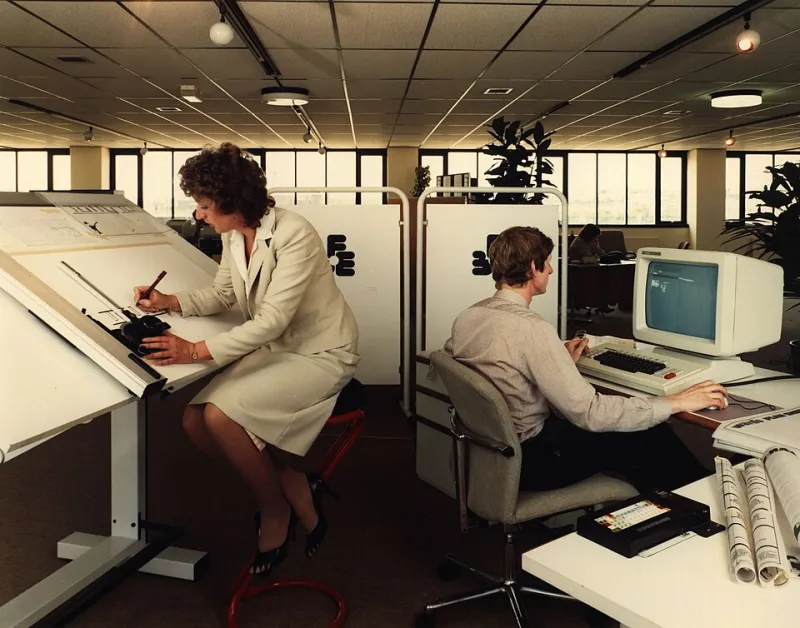
Photo: Tyne & Wear Archives & Museums, No restrictions, via Wikimedia Commons
A scan is often judged by its appearance: straight edges, even contrast, no cropped signatures. That judgement is necessary but incomplete. The page image and the searchable text layer are two different products. One can be perfect while the other is unusable. For UK firms that rely on scanned bundles for client files, disclosure exercises, property records or internal knowledge, the text layer deserves a short, disciplined check before the file leaves the office.
OCR, or optical character recognition, is not a single event that either works or fails. It is a set of interpretations. The software decides where words begin and end, what counts as a table, whether a stamp is content or noise, and in what order a reader should encounter the page. Those decisions are invisible in a normal PDF viewer. They become visible when someone searches for a name, copies a clause into an email, or runs a screen reader over the document.
Why visual inspection is not enough
Most scan quality checks concentrate on resolution, colour mode and file size. These matter, but they do not test the text layer. A 300 dpi colour scan can look excellent and still return no result for a surname printed clearly on page four. A black-and-white copy may be legible to the eye while the OCR engine has treated a shaded table as a single block. The result is a document that appears complete but behaves as an image with occasional, unreliable text attached.
The practical risk is not abstract. A colleague searching a matter file for a postcode may conclude that the document is absent when the text layer has simply misread it. An accessibility review may find that the reading order jumps between columns. A disclosure exercise may require a reliable search for a term across hundreds of pages, and the firm may have no easy way to prove that the search was sound. The scan has passed the eye test and failed the use test.
Set the gate before the file is released
The most effective control is a short pre-release gate owned by the person who prepares the scan, not by the person who later needs it. It need not be technical. It should be repeatable, recorded and quick enough to survive a busy day. Five minutes per batch is usually sufficient if the batch is representative and the checks are targeted.
Begin by identifying the known strings that should be present. Choose three: a name, a reference number and a distinctive phrase from the body of the document. Avoid generic words that may appear on every page. If the scan is part of a larger bundle, include a term that should appear only once. These strings become the basis for the first pass/fail test.
Five checks that expose the text layer
1. The known-string search
Search the PDF for each of the three strings. A pass means each term is found in the expected place and the highlighted result matches the visible text. A fail means no result, a result on the wrong page, or a highlight that covers the wrong words. If the term is found but the surrounding text is garbled, treat it as a partial pass and inspect further. Fix by re-running OCR with the correct language setting, or by replacing the page image with a cleaner scan before OCR is applied again.
2. The copy-and-paste test
Select a short paragraph from the middle of the page and paste it into a plain-text editor. This removes formatting and exposes what the text layer actually contains. A pass is readable prose with sensible word breaks. A fail includes missing spaces, stray symbols, repeated characters or lines that run together. Copying from a table is especially revealing: if the pasted result loses the row and column relationship, the table may be searchable but not usable.
3. Handwriting, stamps and annotations
OCR is generally weak on handwriting and mixed with stamps, even when the human eye finds them clear. Decide before the scan whether these elements need to be searchable or merely visible. A handwritten date that is critical to the file should be transcribed into the document metadata or a cover note rather than trusted to OCR. A stamp that carries a reference number should be checked by searching for that number. If it fails, add a text note in the correct place or re-scan the stamp at higher contrast. Do not assume that a legible image means a legible text layer.
4. Tables, columns and headers
The reading order of a page is an OCR decision. Multi-column layouts, side-by-side signatures and tables with merged cells are common failure points. Search for a value in the far-right column and confirm that the result appears in context. Copy a row and check that it remains a row. Headers and footers should be checked separately: page numbers, document titles and confidentiality markings can be pulled into the body text or omitted entirely. A pass means the text layer reflects the page's logical structure closely enough for search and copy. A fail requires re-OCR with layout analysis enabled, or manual correction of the affected pages.
5. Skew, borders and faint text
A page that looks slightly skewed to the eye can produce a text layer with broken lines and misread characters. Open the page at fit-to-width and check the first and last lines. Search for a word near the bottom margin. If the text layer struggles at the edges, deskew the image and re-run OCR. Faint footnotes, shaded boxes and text close to a binding edge should receive the same treatment. The fix is often a better source image, not a different OCR engine.
Record the result and release with confidence
The gate should leave a trace. A simple line in the job record can state the three test strings, whether each passed, and any manual correction made. This is not bureaucracy for its own sake. It gives the firm a defensible account of what was checked and helps the next person understand why a page was re-scanned or a note was added.
If a document fails more than one check, do not release it with a verbal warning. Either correct the text layer or mark the file clearly as image-only and explain the limitation to the recipient. A scan that is honestly described is safer than one that appears searchable but is not.
The text layer is not a decorative attachment to the scan. It is the part of the document that answers questions. A five-minute gate, applied before the file leaves the office, is a small investment against hours of failed searches, repeated requests and avoidable doubt.